---
title: Requests
description: Automate your request processes or Legal Intake, simplifying the management of legal tickets.
---
[Skip to content](https://support.biglelegal.com/en/knowledge-base/requests-1#main-content)
- [English](https://support.biglelegal.com/en/knowledge-base/requests-1)
- [Español](https://support.biglelegal.com/es/knowledge-base/solicitud)
English
Show submenu for translations
[Customer portal](https://support.biglelegal.com/tickets-view?hsLang=en)

Open main navigation
Close main navigation
- - [English](https://support.biglelegal.com/en/knowledge-base/requests-1)
- [Español](https://support.biglelegal.com/es/knowledge-base/solicitud)
English
Show submenu for translations
- [Customer portal](https://support.biglelegal.com/tickets-view)
Find what you are searching
- There are no suggestions because the search field is empty.
1. [Knowledge Base](https://support.biglelegal.com/en/knowledge-base?hsLang=en)
2. [Requests](https://support.biglelegal.com/en/knowledge-base/requests?hsLang=en)
# Requests
## Automate your request processes or Legal Intake, simplifying the management of legal tickets.
The Requests functionality, also known as Legal Ticketing or Legal Intake, allows you to easily create and send requests using customizable templates. This not only ensures **standardization and control of incoming requests**, but also streamlines the process by **automatically importing the necessary data**.
To achieve this, you have the option to link the request form with one or multiple documents, so that matching fields are automatically populated in the selected documents.
In this article, you will learn the following key functions:
- [Creating a request **form** template.](https://support.biglelegal.com/en/knowledge-base/requests-1#request-template)
- [Making external requests through a **link**.](https://support.biglelegal.com/en/knowledge-base/requests-1#make-request)
- [Making **internal** requests.](https://support.biglelegal.com/en/knowledge-base/requests-1#internal-request)
- [**Managing** requests.](https://support.biglelegal.com/en/knowledge-base/requests-1#manage-request)
- [Customizing **request notifications**.](https://support.biglelegal.com/en/knowledge-base/requests-1#notifications)
### How to create a request form template
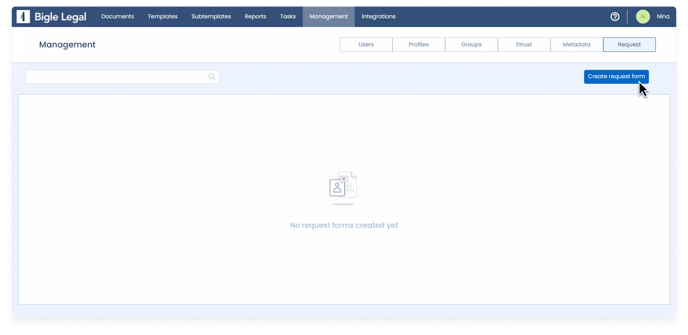
To create a request form template, go to **Management \> Request**. Here, you will find a list of all existing request form templates. To create a new template, simply click on "Create request form."
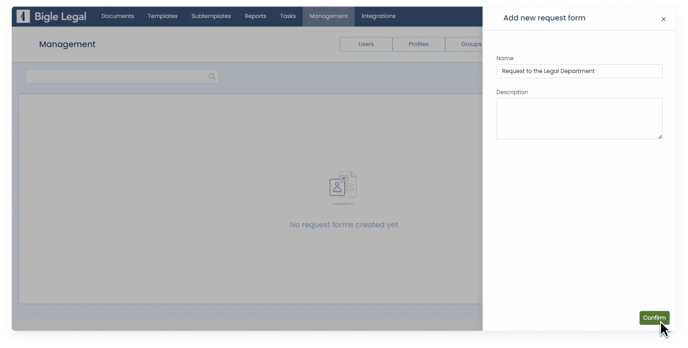
Next, provide a **name** and, optionally, a **description** for the request.
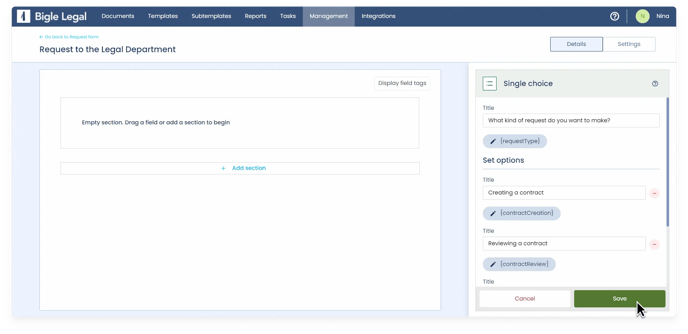
Then, you will be taken to the **Details** tab, where you can build the request form. Click on "Create new field card" to add the necessary fields to the form.
.webp?width=688&height=335&name=Create%20new%20field%20card%20(1).webp)
For each field, provide a name and a tag.
Fields with tags that match those of the subsequently selected documents will be automatically filled in the document forms.
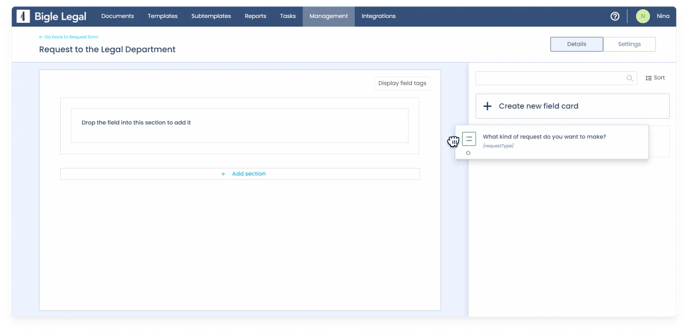
Once the fields are created, drag and arrange them in the desired order within the form.
You can add additional sections by clicking on the "Add section" button at the bottom of the form.
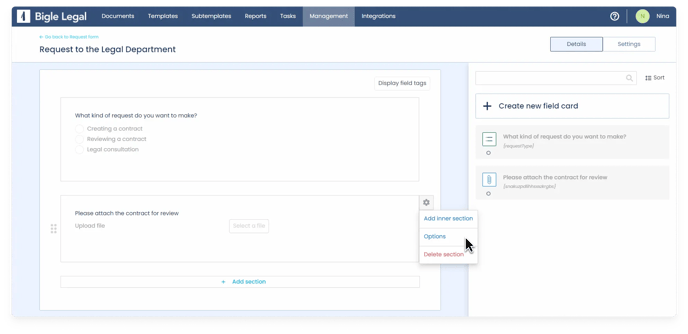
Additionally, using the gear button next to each section, you can **delete** sections, add **internal** sections, and convert them into [multiple](https://support.biglelegal.com/en/knowledge-base/multiple-sections?hsLang=en) or [conditioned](https://support.biglelegal.com/en/knowledge-base/condition-section-to-the-value-of-a-field?hsLang=en) sections from "options":
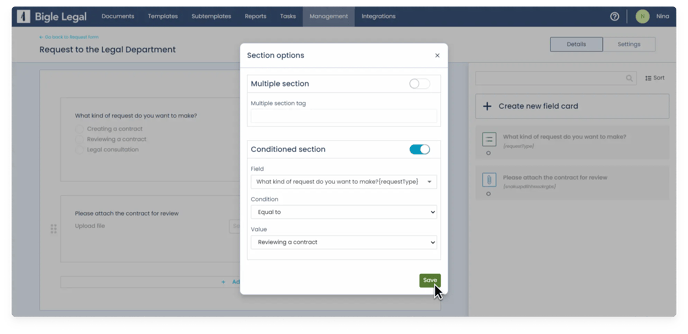
When you have finished constructing the form, go to the "Settings" tab. On this screen, you have several options detailed below the following image:
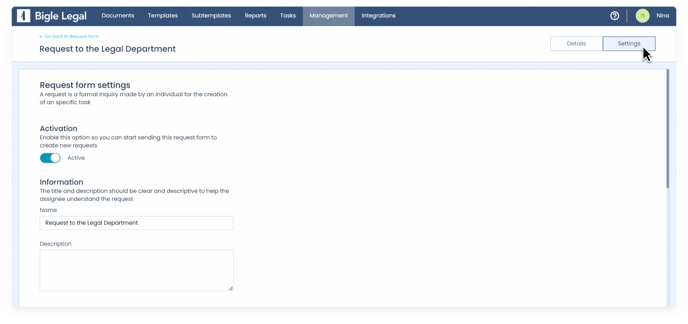
- Activate or deactivate the request template.
- Modify its name and description.
- Assign this task to specific users or request groups (learn how to create request groups in [this article](https://support.biglelegal.com/en/knowledge-base/groups?hsLang=en)).
- Add additional collaborators to keep them informed of the task's progress and results.
- Enable or disable the internal request option. If this option is enabled, only internal requests can be created. When it is disabled, both internal and external requests can be created.
- Copy the link that will be necessary in case you want external people to be able to create requests from outside the platform. This link can only be copied and used when the internal request option is disabled.
- Customize the name of external requests. You can use the tags of the form fields to assign custom names. For example, “Request {Field1} - {Field2}”.
- Select the set of [metadata](https://support.biglelegal.com/en/knowledge-base/metadata?hsLang=en) that will be applied to the request.
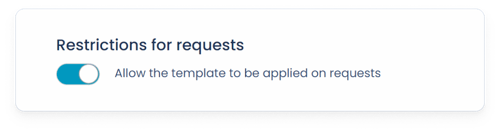
To ensure a **metadata set** can be utilized in requests, make sure it has the “Allow the set to be applied in requests” option enabled in its settings section.
You can also configure **automatic alerts for requests**, either from the template or based on custom metadata. We explain how in [this article](https://support.biglelegal.com/en/knowledge-base/alerts?hsLang=en).
### How to make external requests through a link
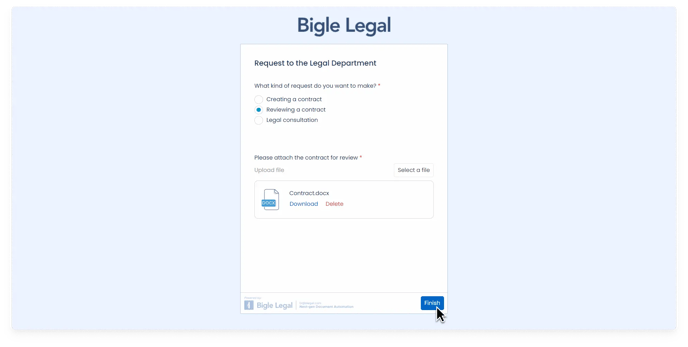
To make an external request, you will need to be provided with the **specific link** to its form. By accessing the link, you can fill out the fields with the necessary data for your request.
After entering all the required information in the form, click on "Finish" to proceed with your request submission.
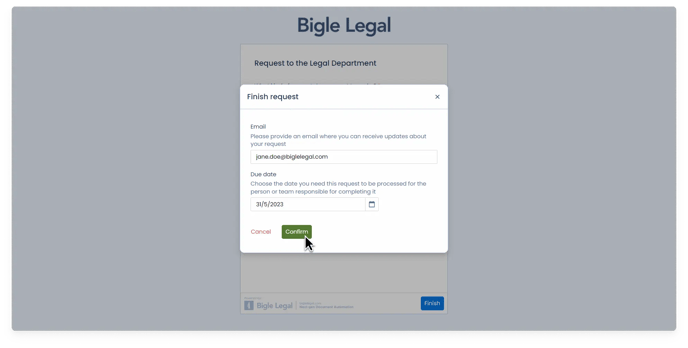
You will be prompted to enter your email address to receive updates, and optionally set a deadline for processing the request. Finally, click on "Confirm" to submit it.
The corresponding people will receive and review your request.
### How to make an internal request
Internal requests are those created within the platform. To create an internal request, follow these steps:
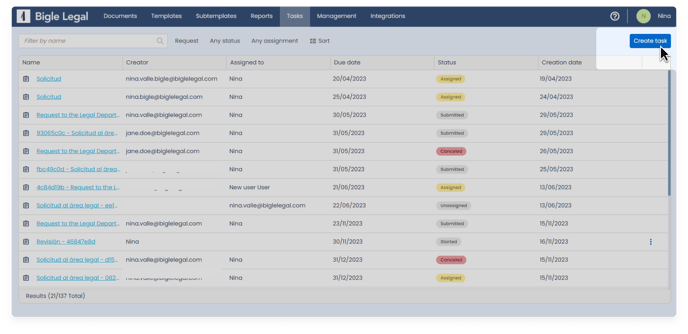
1\. Go to the tasks tab of the main menu of the platform and click on the “Create task” button.
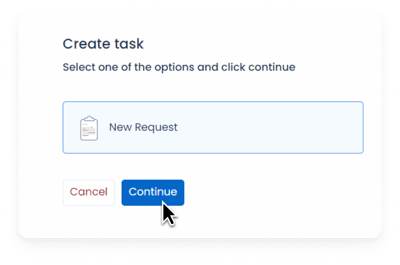
2\. Select “New request” and click “Continue”.
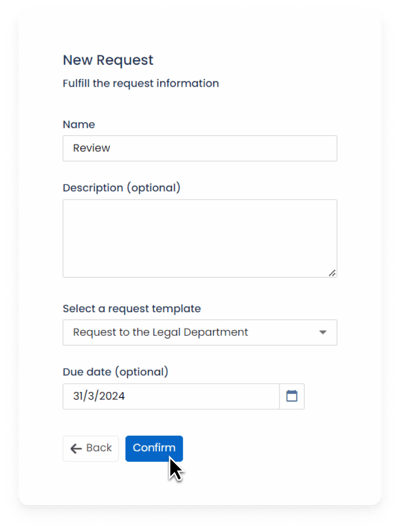
3\. Fill in the request details, select the form you will use, and click “Confirm”.
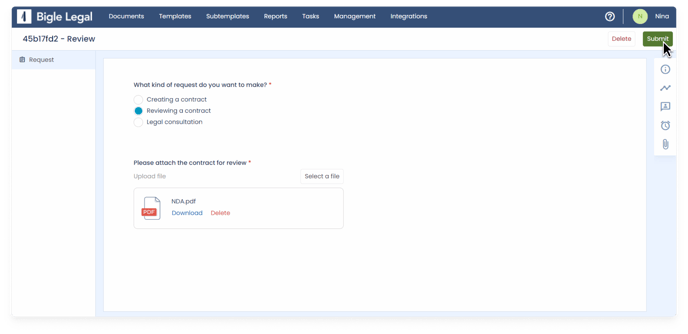
4\. Done! You can now fill out your request. When finished, submit it by pressing the “Send” button in the top right corner.
### How to manage a request
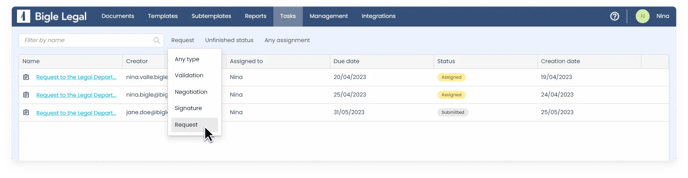
Requests will appear in the **Tasks** tab of the platform's main menu. These requests will be visible to the assigned users and followers, as defined in the form settings.
You can use the buttons next to the search bar to filter tasks by process types, statuses, or assignments. Learn more about tasks in [this article](https://support.biglelegal.com/en/knowledge-base/tasks?hsLang=en).
By clicking on a request, you will access its **completed request form**, where you can view all the information and attached documents. If necessary, you can edit the form data.
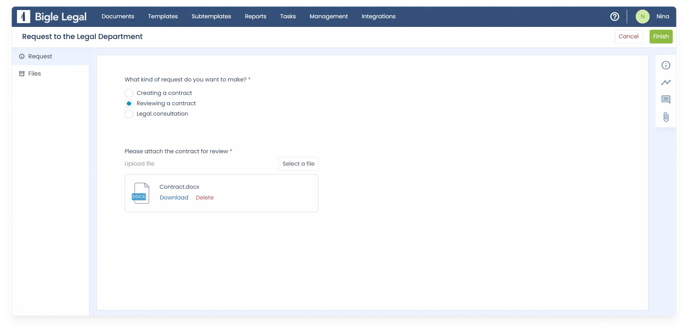
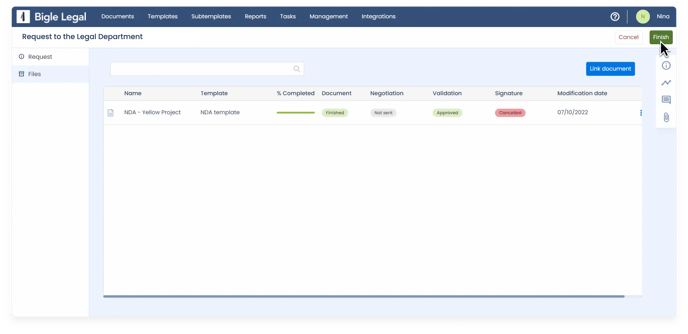
Switching from the **Request** tab to the **Files** tab, you have the option to link documents to this request. To do so, click on "Link document".
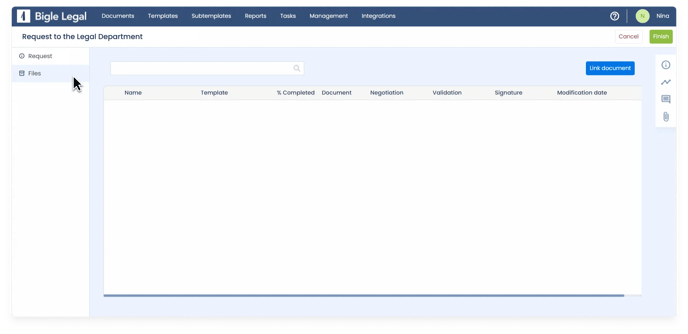
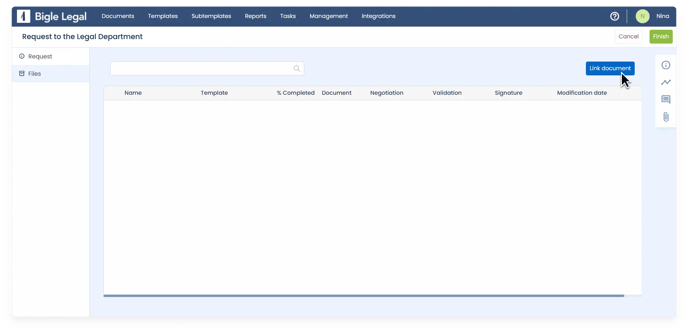
You can create a new document (from a template), upload an external document, or select one from the platform.
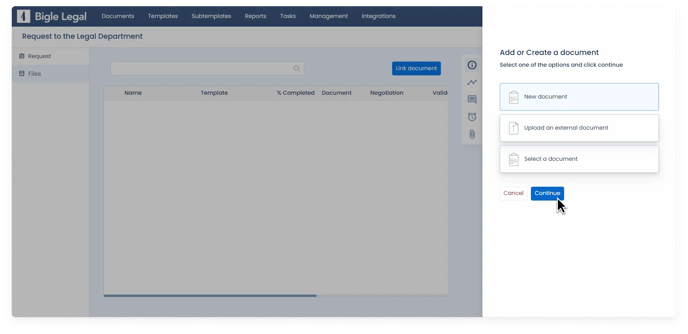
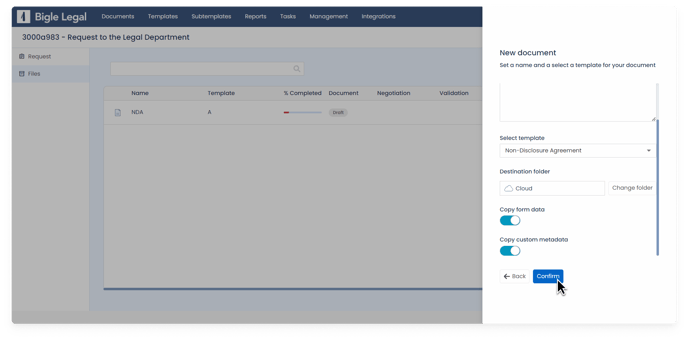
\- When creating a new document from a template, you can enable the options:
- **“Copy form data”:** so that form fields matching those of the request are automatically filled in the new document.
- **“Copy custom metadata”:** so that custom metadata fields matching those of the request are automatically filled in the new document.
\- If you want to select a document from the platform, you can search for it by name and filter by template and creation date:
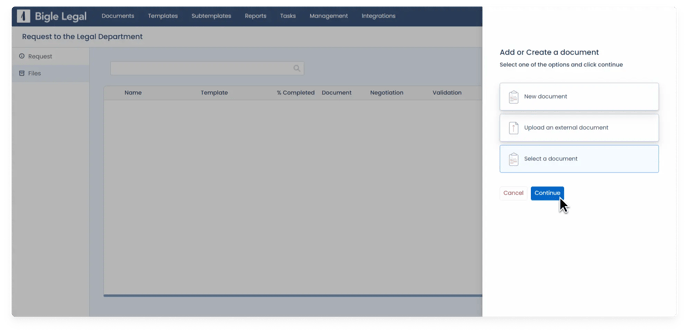
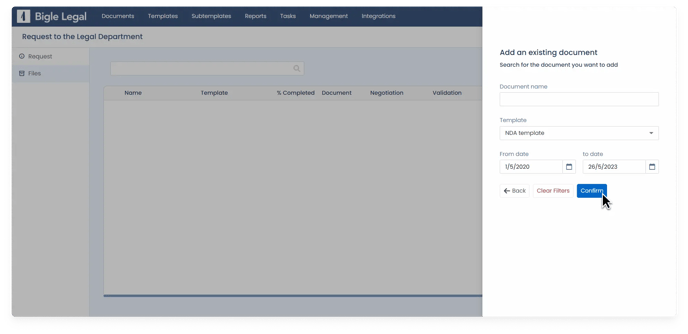
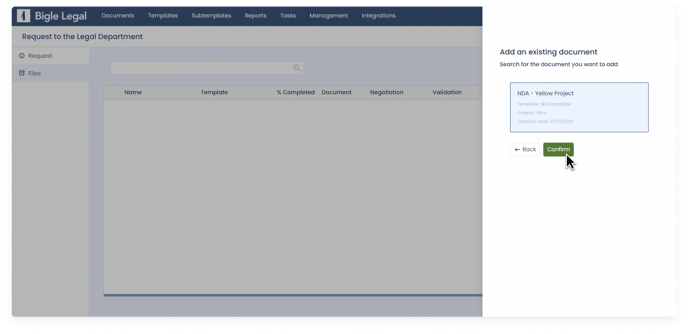
Once you have confirmed the document selection, whether it's from the platform or you have uploaded an external one, it will appear in the **list of files**.
If you wish to **unlink** a document, you can do it through the three dots located on its right side.
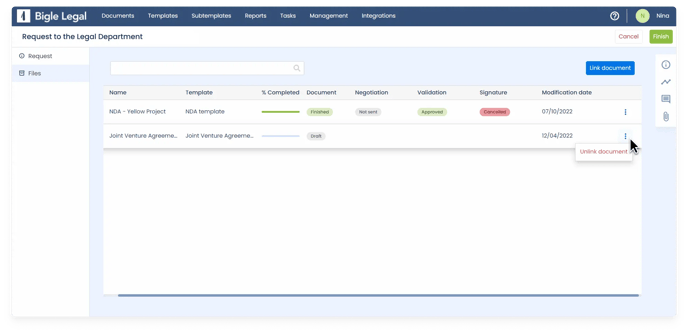
Please note that the same document cannot be linked to more than one file simultaneously.
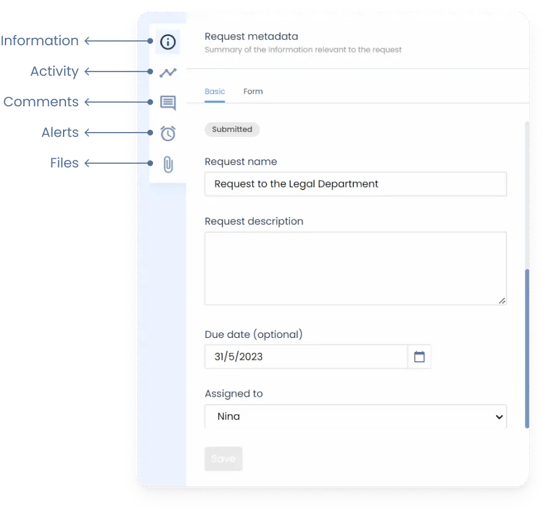
On the other hand, in the right side panel, you will find additional options:
- **Information**: view a summary of relevant request information (ID, creator, creation and modification dates, metadata, name, description, expiration date, assignment...).
- **Activity**: review the history of actions taken.
- **Comments**: add notes and collaborate with team members.
- **Alerts**: add alerts to the request process.
- **Files**: review all the files uploaded in the request and/or upload new files (the supported formats are: pdf, docx, txt, xlsx, jpg, png, pptx, and eml).
Finally, to complete the request, click on "Finalize" in the top menu. If you do not wish to proceed, you can also choose to cancel it.
If you cancel it, you can **permanently delete** it or **reopen** it.

Requests that **have not yet been assigned** can be deleted in the same way, without the need to be canceled first.
### How to customize request notifications
You can customize email notifications about requests from your profile. To do this:
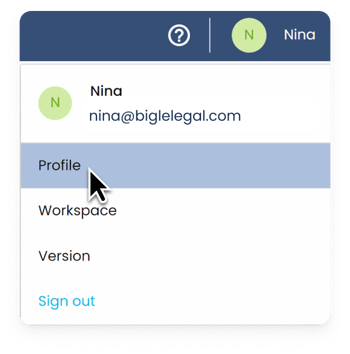
1\. Click on your name at the top right of the screen and go to your profile.
2\. Go to the notifications section to enable or disable request notifications as you wish.
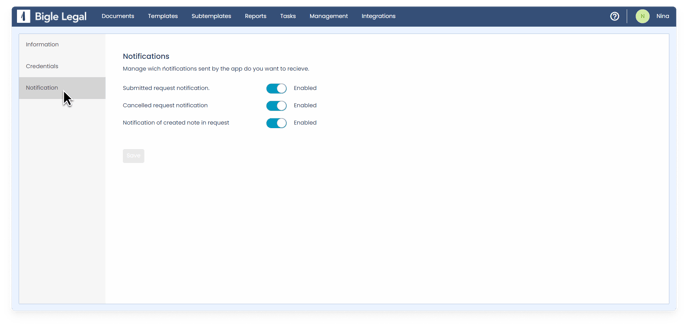
Activated request notifications **will affect all users related to the request**: including creators, assignees, and followers.
- [Platform Updates](https://support.biglelegal.com/en/knowledge-base/platform-updates?hsLang=en)
- [On-demand webinars](https://support.biglelegal.com/en/knowledge-base/on-demand-webinars?hsLang=en)
- [New in Bigle](https://support.biglelegal.com/en/knowledge-base/new-in-bigle?hsLang=en#main-content)
- [0. Introduction](https://support.biglelegal.com/en/knowledge-base/new-in-bigle?hsLang=en#0-introduction)
- [1. Template creation](https://support.biglelegal.com/en/knowledge-base/new-in-bigle?hsLang=en#1-template-creation)
- [2. Creation of fields](https://support.biglelegal.com/en/knowledge-base/new-in-bigle?hsLang=en#2-creation-of-fields)
- [3. Creation of forms](https://support.biglelegal.com/en/knowledge-base/new-in-bigle?hsLang=en#3-creation-of-forms)
- [Templates - Create tags](https://support.biglelegal.com/en/knowledge-base/templates-create-tags?hsLang=en#main-content)
- [Introduction](https://support.biglelegal.com/en/knowledge-base/templates-create-tags?hsLang=en#introduction)
- [Type of tags](https://support.biglelegal.com/en/knowledge-base/templates-create-tags?hsLang=en#type-of-tags)
- [Types of use of opening and closing tags](https://support.biglelegal.com/en/knowledge-base/templates-create-tags?hsLang=en#types-of-use-of-opening-and-closing-tags)
- [Settings](https://support.biglelegal.com/en/knowledge-base/templates-create-tags?hsLang=en#settings)
- [Templates - Fields](https://support.biglelegal.com/en/knowledge-base/templates-fields?hsLang=en)
- [Template - Form](https://support.biglelegal.com/en/knowledge-base/template-form?hsLang=en)
- [Template - Settings](https://support.biglelegal.com/en/knowledge-base/template-settings?hsLang=en)
- [Sub-template](https://support.biglelegal.com/en/knowledge-base/sub-template?hsLang=en)
- [Metadata and Reports](https://support.biglelegal.com/en/knowledge-base/metadata-and-reports?hsLang=en)
- [Documents](https://support.biglelegal.com/en/knowledge-base/documents?hsLang=en#main-content)
- [Document management and organization](https://support.biglelegal.com/en/knowledge-base/documents?hsLang=en#document-management-and-organization)
- [Massive actions](https://support.biglelegal.com/en/knowledge-base/documents?hsLang=en#massive-actions)
- [Document options](https://support.biglelegal.com/en/knowledge-base/documents?hsLang=en#document-options)
- [Processes](https://support.biglelegal.com/en/knowledge-base/documents?hsLang=en#processes)
- [Bigle AI](https://support.biglelegal.com/en/knowledge-base/bigle-ai?hsLang=en#main-content)
- [Document Assistant](https://support.biglelegal.com/en/knowledge-base/bigle-ai?hsLang=en#document-assistant)
- [Discriminative AI](https://support.biglelegal.com/en/knowledge-base/bigle-ai?hsLang=en#discriminative-ai)
- [Libra: General AI Chat on the Platform](https://support.biglelegal.com/en/knowledge-base/bigle-ai?hsLang=en#libra-general-ai-chat-on-the-platform)
- [Requests](https://support.biglelegal.com/en/knowledge-base/requests?hsLang=en)
- [Edition](https://support.biglelegal.com/en/knowledge-base/edition?hsLang=en)
- [Negotiation](https://support.biglelegal.com/en/knowledge-base/negotiation?hsLang=en)
- [Validation](https://support.biglelegal.com/en/knowledge-base/validation?hsLang=en)
- [Electronic signature](https://support.biglelegal.com/en/knowledge-base/electronic-signature?hsLang=en)
- [Workflows](https://support.biglelegal.com/en/knowledge-base/workflows?hsLang=en)
- [Certified Email](https://support.biglelegal.com/en/knowledge-base/certified-email?hsLang=en)
- [Tasks](https://support.biglelegal.com/en/knowledge-base/tasks?hsLang=en)
- [Administration and Security](https://support.biglelegal.com/en/knowledge-base/administration-and-security?hsLang=en)
- [Customize the platform](https://support.biglelegal.com/en/knowledge-base/customize-the-platform?hsLang=en)
- [Integrations](https://support.biglelegal.com/en/knowledge-base/integrations?hsLang=en#main-content)
- [No-code universal connector](https://support.biglelegal.com/en/knowledge-base/integrations?hsLang=en#no-code-universal-connector)
- [Bigle Legal API](https://support.biglelegal.com/en/knowledge-base/integrations?hsLang=en#bigle-legal-api)
[](https://www.biglelegal.com/press/bigle-ranks-26-in-deloitte-technology-fast-50-2026)
Copyright © 2026, Bigle Iberia, S.L.