
This feature allows administrators to configure assistants with predefined instructions ("prompts"). This makes it easier for users to execute a previously saved prompt when reviewing a document with AI, avoiding the need to create it from scratch each time. It ensures that legal knowledge is centralized and consistent results are obtained across the team.
A common use case is creating an assistant with internal criteria to be applied by legal teams when reviewing specific contract types (contractual or legal playbook). This ensures the AI acts not only based on its intrinsic knowledge but also adheres to the specific criteria provided by each company.
How to Create and Configure an Assistant (Administrators Only)
As an administrator, you can create specific assistants (e.g., "NDA Reviewer" or "Abusive Clause Analyst") that will be available to your team.
- Access the Management module in the top menu.
- Click on the Assistants tab (located to the right of the submenu bar). Here you will see the list of existing assistants, with options to duplicate or delete them.
- Click on the blue New Assistant button.
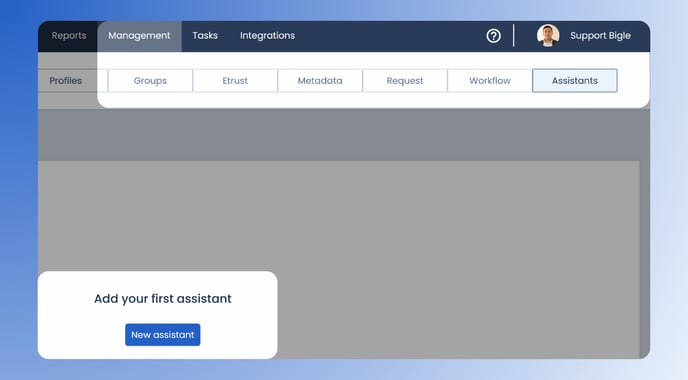
- Add a name and description to your assistant.
- Name: The title users will see in the dropdown menu (e.g., "Risk Analyst").
- Description: A brief internal explanation regarding the assistant's purpose.
- Configure the assistant's parameters: In the configuration screen, you must complete the following key fields:
- Active: Toggle this switch to make the assistant immediately visible to users.
- Message: This is the initial text that will be entered into the chat field when the user selects this assistant. It serves as the final layer of customization for the instruction given to the AI.
- Middle Message (Prompt Configuration): This is the most important field. Here you must specify the technical instructions and the exact behavior the AI should follow when analyzing the document. It defines the role, tone, and analysis rules.
- Once the fields are completed, click Save.
The quality of the assistant's responses depends directly on the accuracy of the instructions entered in the "Middle Message" field.
How to Use an Assistant in Libra
Once the administrator has created the assistants, using them is very simple:
- Open the document you want to work on.
- Unfold the Libra (AI Assistant) panel.
- At the bottom of the chat, you will find a dropdown menu called List of Assistants.
- Click and select the assistant you need for your current task (e.g., "Risk Auditor").
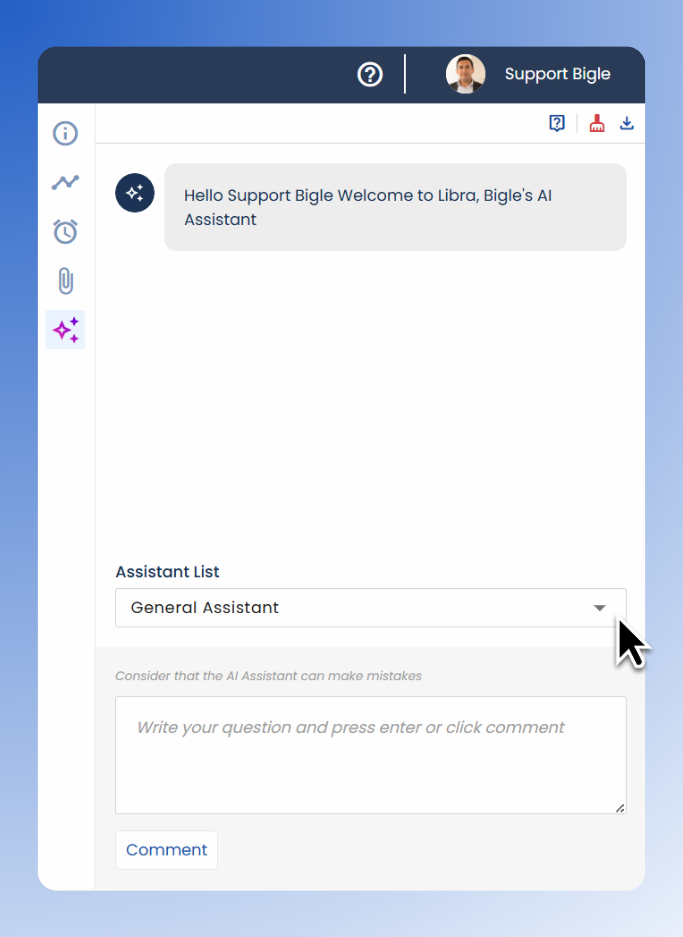
Upon selection, the assistant will automatically load the context and predefined instructions, ready to help you immediately with the specific focus you need.
Even if you select a predefined assistant, you can continue interacting with it and ask additional questions on the fly. The assistant will maintain the configured role and context.
Practical Use Case: Risk Analysis Assistant
To better understand how to configure the "Middle Message" field, let's look at a real example of creating an assistant that audits contracts.
Objective: Create an assistant that detects dangerous clauses in supplier contracts.
Administrator Configuration:
- Name: Supplier Risk Auditor.
- Message (Initial Context): "Analyze the clauses of the following contract and their risk level from the perspective of [Insert Contract Party]."
- Middle Message (The Engineering Prompt):
"Act as a senior lawyer expert in Compliance and corporate risk management. Your task is to analyze the text of the uploaded document looking for clauses that represent a high risk for our company (the Contracting Party).
Focus specifically on:- Unlimited liability clauses.
- Automatic renewals without notice.
- Jurisdiction in countries outside the European Union.
- For each detected risk, cite the original clause, explain why it is a risk, and propose a safer and more conservative alternative wording. If you do not find risks in these categories, indicate so clearly."
Why this configuration? The "Middle Message" provides a precise instruction (role of senior lawyer), defines the scope (three specific points), and structures the output (quote, explanation, and alternative wording). This avoids vague responses.
When the user uses this assistant, Libra will not limit itself to summarizing the text but will act as a strict auditor, delivering a structured risk report exactly as defined in the configuration.