
Before you start
Request notifications: they are enabled by default. You don’t need to set anything up to start receiving them.
1. Reports
Filter your reports by metadata set
Type: Improvement
When you create a report, you can now filter by a whole metadata set, not just by specific fields. This gives you reports segmented by document type: the report only shows documents that have the selected metadata set applied.
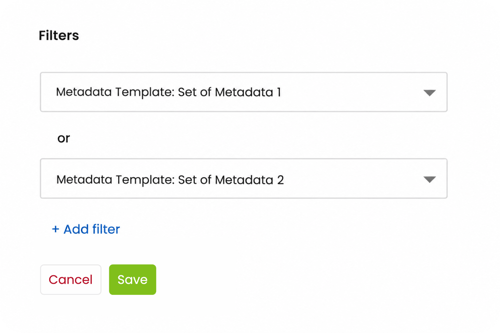
Where to find it: Reports > create or edit a view > filters.
How to use it:
- Create a new report or edit an existing one.
- Add a metadata set filter.
- Select the metadata set you want to analyse.
- To include several sets, add each one and check the “OR” option.
Filter by dates relative to today
Type: Improvement
Date filters in Reports now include three new options: “Today”, “Before today” and “After today”. They update automatically every day, so you can see which contracts are active or expired without changing the date manually.
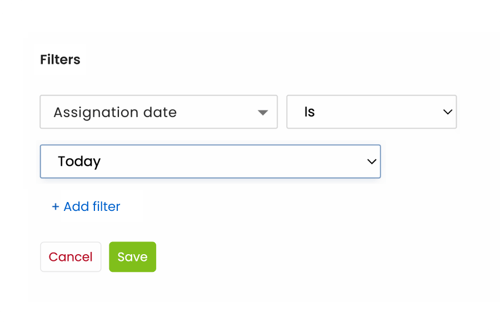
Where to find it: Reports > create or edit a view > filters > date field.
How to use it:
- Create a new report or edit an existing one.
- Add a filter on a date field, for example the expiration date.
- Select “Before today” to see expired contracts or “After today” to see active ones.
Please note: these options work with any date field.
2. Documents
Drag and drop documents to upload them faster
Type: Improvement
Upload external documents by dragging them straight into the document list, from your computer or from your email attachments. This saves you steps when adding documents to Bigle.
Where to find it: Documents > document list.
How to use it:
- Go to “Documents” in the top menu and open the folder where you want to upload the document.
- Drag the files and drop it onto the document list.
- Check the file in the window that opens and, if applicable, select the workflow to apply.
- Confirm the upload.
Please note: you can only drag one file, not folders or multiple files for now.
Upload a document without typing its name
Type: New feature
When you upload a single external document, you no longer need to name it before selecting the file. Bigle uses the file name, as it already did for bulk uploads.
Where to find it: Documents > “Create document” > upload external document.
See only the folders you have access to
Type: Improvement
The document list now only shows the folders you have access to. Private folders you cannot access no longer appear.
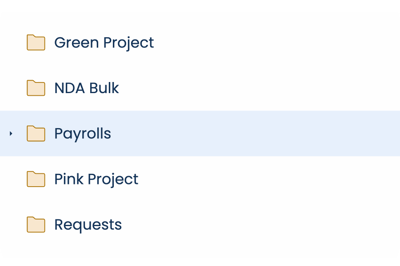
Where to find it: Documents.
3. Bigle AI
Create AI assistants with a clearer form
Type: Improvement
We have redesigned the assistant creation form to make it easier to complete:
- Clearer help text: the descriptions of the role definition and instructions fields are shorter and more direct.
- Examples in each field: the placeholder text includes real-world examples so you can see at a glance what to write.
- More room to write: the form is wider and the text fields are taller, so you can work comfortably with long texts such as FAQs or terms and conditions.
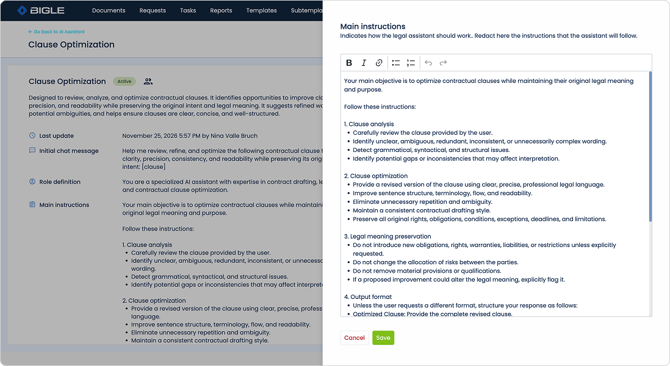
Where to find it: Management > Assistants
4. Forms
Leave a single-choice field empty when filling in a template
Type: Improvement
When filling in a template’s form, you can now deselect the option you chose and leave the field empty. You no longer need to exit and create the document again when no option should be included.
Where to find it: Documents > “Create document” > select a template > form.
5. Requests
Get an email when a document is uploaded to a request
Type: New feature
When the requester uploads a new document to a request, the assigned user receives an email. This lets you review additional documentation as soon as it arrives, without having to check manually.
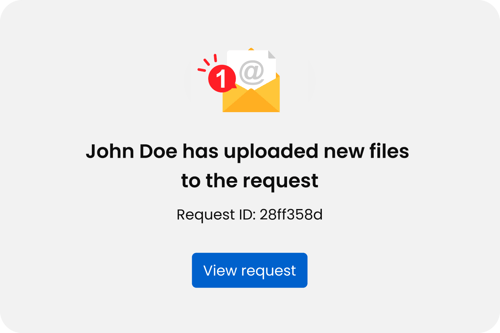
Where to find it: the notification arrives in your email inbox. You can turn it on or off in your notification settings.
Please note:
- Only files uploaded to the request using the paperclip icon trigger a notification.
- The email is sent for requests that are being managed and for finished requests. It is not sent for started, unassigned, cancelled or deleted requests.
- The notification is enabled by default.
6. Integrations
Send documents over 25 MB for signature with DocuSign
Type: Improvement
If you use the e-Signature integration with DocuSign, you can now send documents and annexes that exceed the previous 25 MB limit. This is especially useful for large signing packages with tables or drawings that you previously had to compress manually.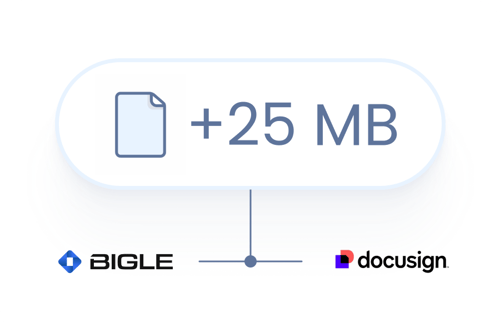
Where to find it: Documents > open a document > “Add step” > “Signature”, with DocuSign as the signature provider.
Please note: the larger the file, the longer it takes to send it to DocuSign.